
One of the clearest differences between desktop PCs and smartphones is audio multitasking. On a computer, you can have multiple apps running and outputting sound at the same time. But you can’t do that on a phone or a tablet. The moment playback starts in one app, audio from any other app stops immediately.
That’s how it has worked since the early days of the smartphone era, and it’s unlikely to change anytime soon. However, if you’re using a Galaxy device running One UI, there is a way to bend the rules a little.
The feature is called Separate app sound. It’s been around in One UI for a while, but it remains surprisingly obscure.
How do you turn on Separate app sound in One UI?
By default, when you connect a Bluetooth audio device to your Galaxy phone or tablet, all audio is routed through that device. Music, videos, navigation prompts, notifications — everything goes to the same output.
Separate app sound changes that behavior. It lets you route audio from specific apps to your phone or tablet’s built-in speakers, even while a Bluetooth device is connected.
Why would you want that? Picture this. You’re riding in the passenger seat, listening to music through your Bluetooth headphones. At the same time, the driver needs navigation instructions from Google Maps coming through the phone's speakers.
With Separate app sound, you can set Google Maps to always play through the device speaker while your music continues uninterrupted through your headphones.
That’s just one example. You can mix and match apps depending on your needs, whether it’s media, games, or navigation.
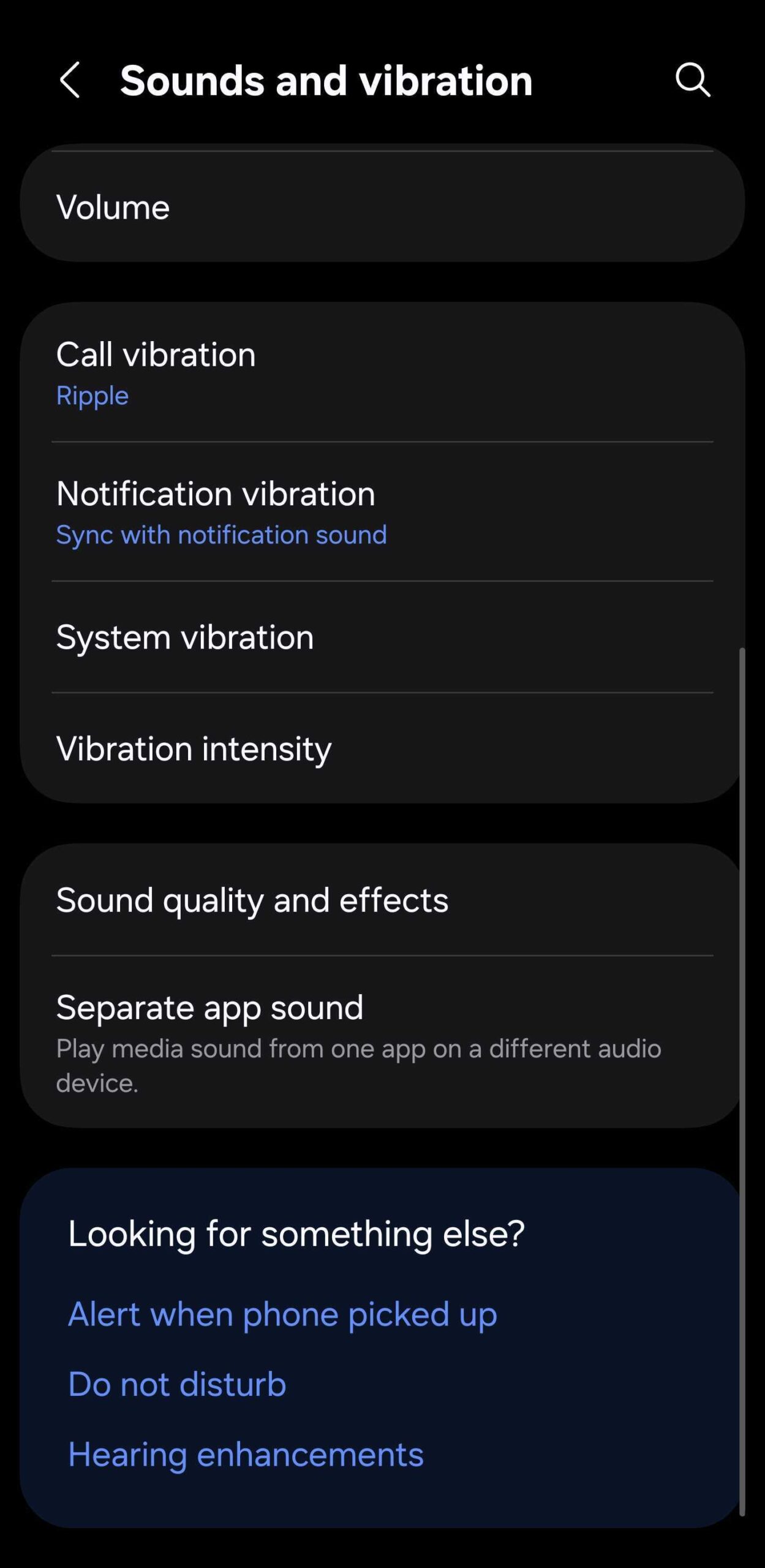
Here’s how to enable and customize the feature on Galaxy devices running One UI 8:
- Settings > Sounds and vibration > Separate app sound > Turn on now. You can manually select apps and audio output options.


The feature works exactly as described, but there is one limitation. You can’t assign different apps to different Bluetooth devices.
In other words, you can only choose between the phone or tablet’s speakers and whichever single Bluetooth device is currently connected for audio. But you can't specify different Bluetooth devices on an app-by-app basis. Your options are speaker output or Bluetooth output for any given app.
Browse the latest Samsung offers
The post One UI’s secret audio hack you probably didn’t know existed appeared first on SamMobile.


Post a Comment